In today’s mobile-first world, work phones are no longer just for calls. They’re used to access cloud-based systems, send emails, join video calls, and even handle sensitive client data. Yet, many businesses issue smartphones without taking the time to adjust key settings that can improve security, performance, and productivity. Whether you’re managing a team of five or fifty, ensuring every work device is set up correctly can make a big difference. These five essential settings are a great starting point to protect your business, streamline mobile use, and reduce unnecessary risk.
1. Disable Auto-Connect to Public Wi‑Fi
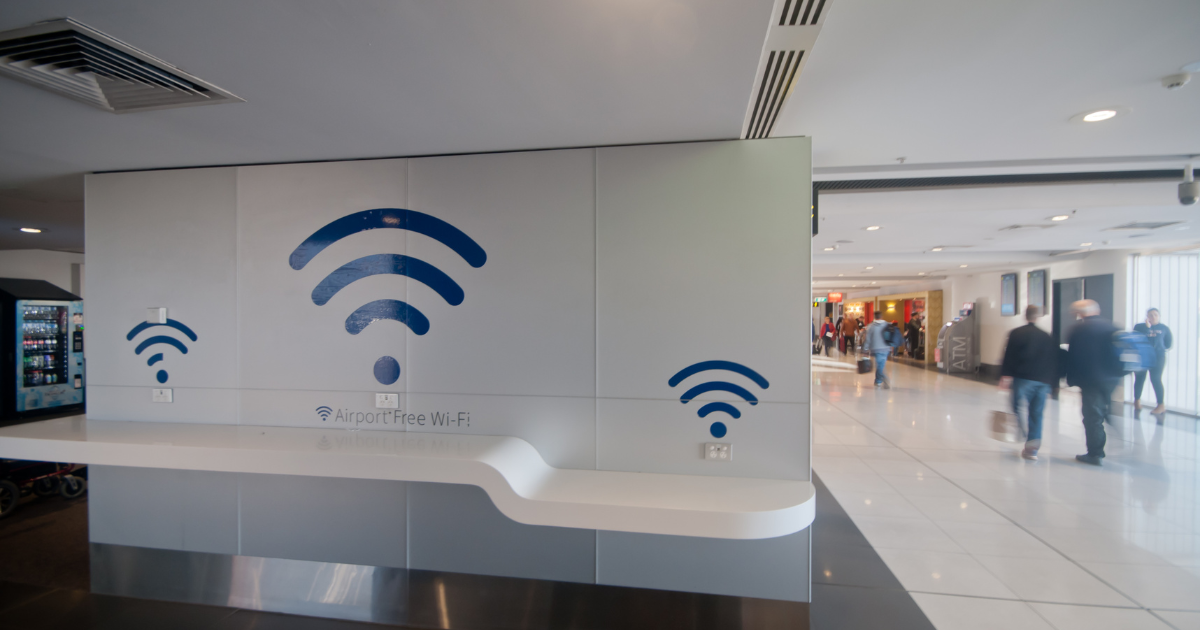
Many smartphones are set by default to automatically connect to open Wi‑Fi networks, such as those found in cafés, airports, and hotels. While convenient, this poses a serious security risk. These public networks are often unsecured, making it easy for cybercriminals to intercept data or impersonate a trusted network. This could result in sensitive emails, files, or logins being exposed. Disabling auto-connect forces users to make a conscious choice about the networks they join, reducing the risk of unintentional exposure. For teams who work remotely or travel frequently, consider combining this setting change with mobile plans that offer generous data allowances, ensuring staff have reliable access to the internet without resorting to public hotspots.
2. Enable Device Tracking and Remote Wipe
Work phones are valuable, not just in cost, but in the business data they contain. If a phone is lost or stolen, having tracking enabled can help recover it quickly. More importantly, enabling remote wipe functionality ensures your data can be erased even if the device falls into the wrong hands. Both Apple and Android devices offer this feature through Find My iPhone or Find My Device, but it must be switched on in advance.
For larger teams or businesses with strict compliance requirements, it’s worth considering a mobile device management (MDM) solution. This allows IT administrators to track devices centrally and remotely lock or wipe them when needed, offering peace of mind and operational control.
3. Strengthen Lock Screen Security
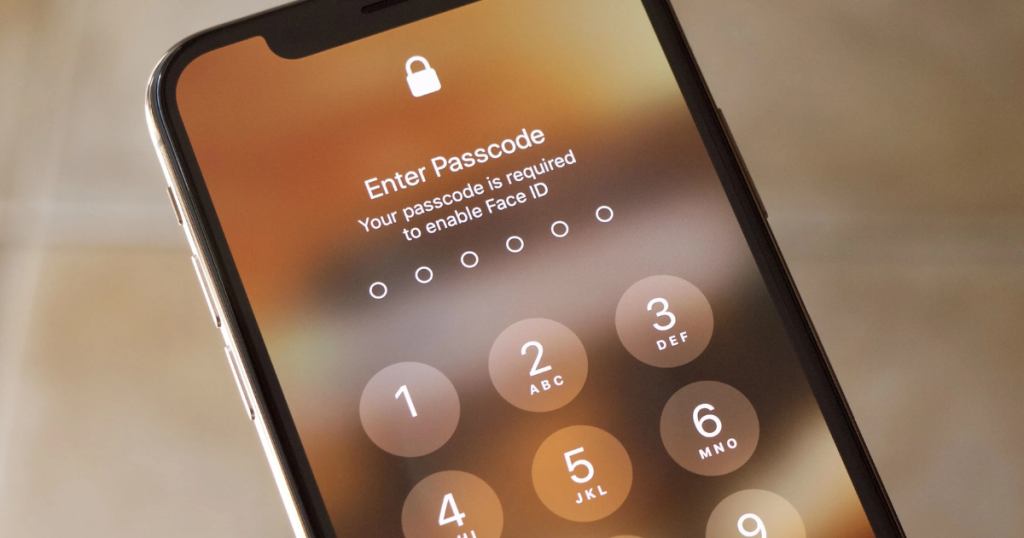
A phone’s lock screen is the first line of defence against unauthorised access. Many users still rely on simple four-digit PINs or use swipe patterns that can be easily guessed. Stronger authentication, such as longer alphanumeric passcodes, fingerprint ID, or facial recognition, offers a more robust layer of protection.
It’s also important to limit lock screen notifications. Displaying email previews or app messages can leak confidential information, even if the phone remains locked. Adjusting notification settings to hide sensitive content until the phone is unlocked can prevent unintended data exposure, especially in public or shared spaces.
4. Turn Off Background App Refresh for Non-Essential Apps
Modern smartphones run dozens of apps simultaneously in the background, many of which are not business-critical. These apps often refresh content, use mobile data, and drain battery life, all without the user realising. Turning off background app refresh for non-essential apps helps to preserve battery life and prioritise network resources for important tools such as VoIP applications, CRM software, or team communication platforms. This small tweak can lead to better device performance and reduced data usage across the board, particularly useful for teams working in the field or without regular access to charging.
5. Enforce Security & Usage Settings with Mobile Device Management (MDM)
While manually adjusting phone settings is a good start, relying on staff to make these changes individually can be inconsistent and time-consuming. Mobile Device Management (MDM) offers a streamlined, scalable solution. With MDM, businesses can automatically enforce key security settings, pre-install required apps, and control access to features such as the camera or app downloads. It also allows for central monitoring and support, making it ideal for businesses that issue multiple devices or operate in regulated industries. By deploying an MDM solution, your business can ensure that every device meets your standards from the moment it’s switched on.
Final Thoughts
Looking to equip your team with secure, business-ready mobile devices? At The One Solution, we help businesses source, set up, and manage mobile technology with full support, tailored data plans, and optional MDM integration. Get in touch to find out how we can help keep your workforce connected and protected.
If you’re looking to upgrade your business mobile fleet, and would like to arrange a no-obligation chat with our team, you can use our contact form or get in touch on 0330 094 5545.